
CrossPoint
CrossPoint is open-source firmware for Xteink X3, X4, and other FreeInk e-readers. The Readest plugin for CrossPoint connects the reader to your Readest account:
- Library — browse and search the EPUBs in your Readest cloud library on the reader, and download them to the SD card.
- Reading progress — the reader's built-in KOReader Sync syncs your position with Readest, with no sync server to set up.
- Reading statistics — every reading session on the reader is added to your Readest reading statistics.
Requirements
- CrossPoint firmware with SD plugin support. Plugins arrived in CrossPoint's development builds on 2026-09-30. Releases up to 1.6.5 do not include them, so install a nightly build from crosspointreader.com until the next release.
- A Readest account. Any sign-in method works, including Google and Apple, because the reader never sees your password.
- Books in Readest Cloud. The reader lists the EPUBs you uploaded to Readest. Only EPUBs are listed, since that is the format CrossPoint reads.
Install the plugin
- Download
Readest-<version>.crosspoint-plugin.zipfrom the latest Readest release, or from the CrossPoint button on the Readest download page. - Unzip it and copy the
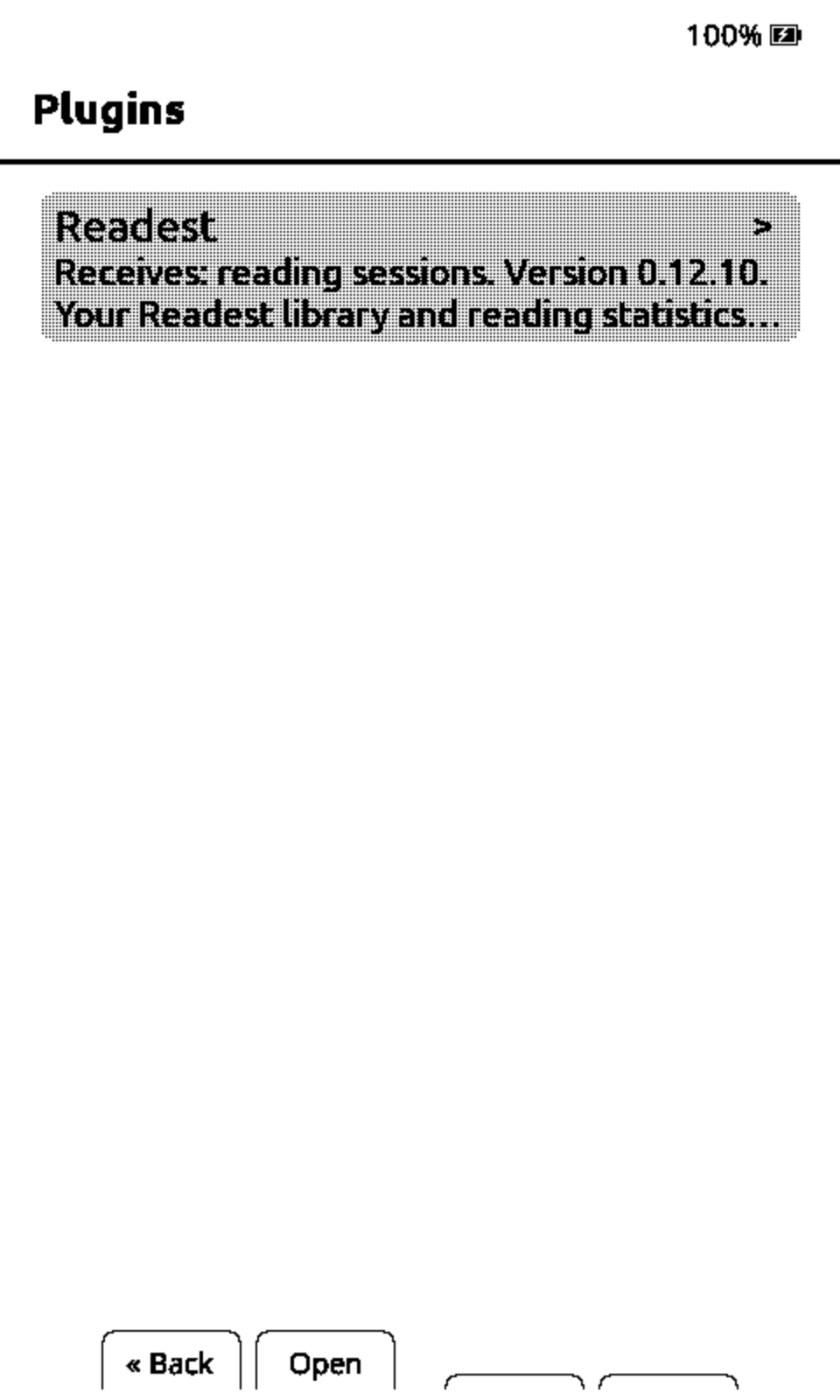
readestfolder to the SD card as/.crosspoint/plugins/readest/./plugins/readest/works too, if you can't create folders that start with a dot. - Restart the reader. Readest now appears under Plugins on the home screen, with the plugin's version.
Open the web settings
You set the plugin up from CrossPoint's web Settings page, which the reader serves over Wi-Fi.
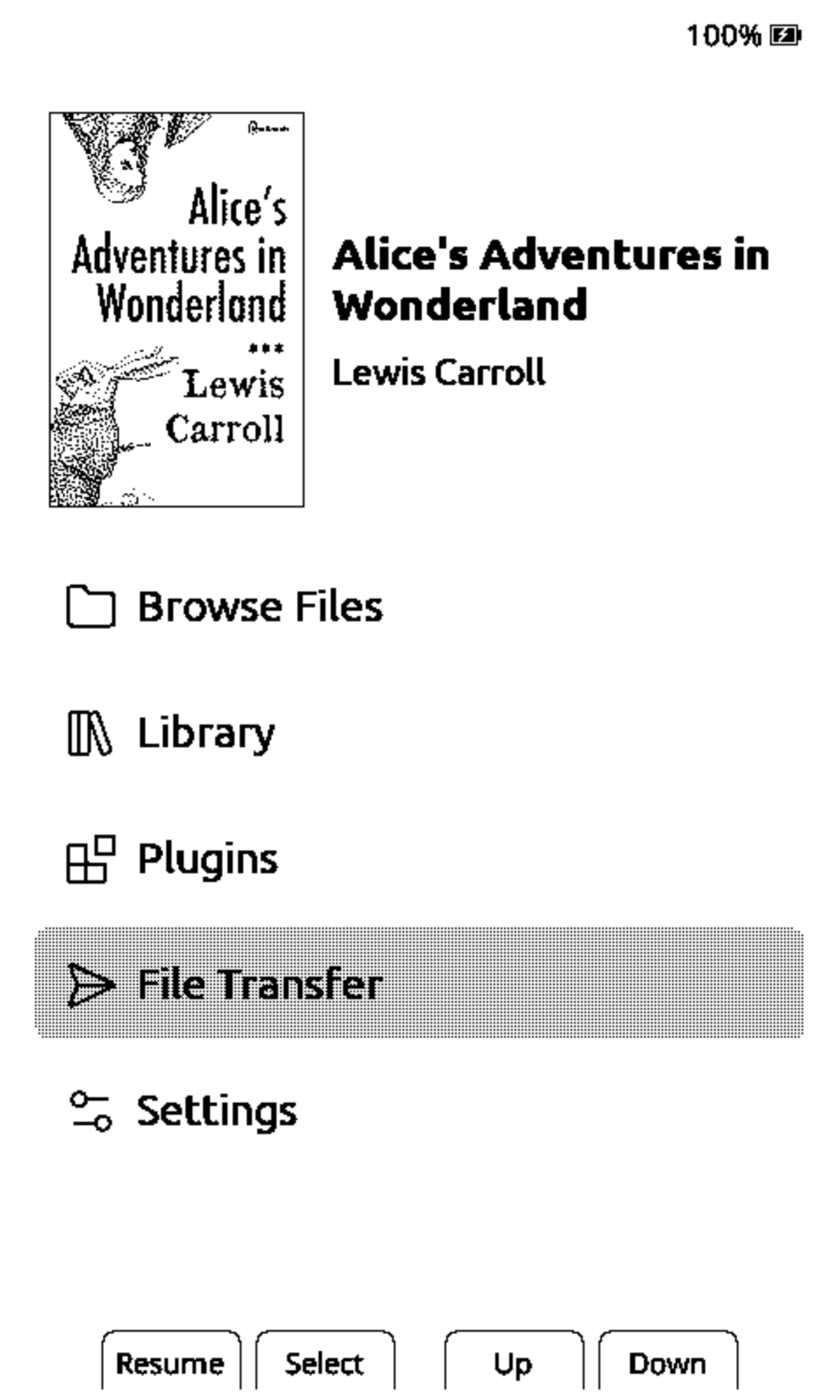
- On the reader, open File Transfer.
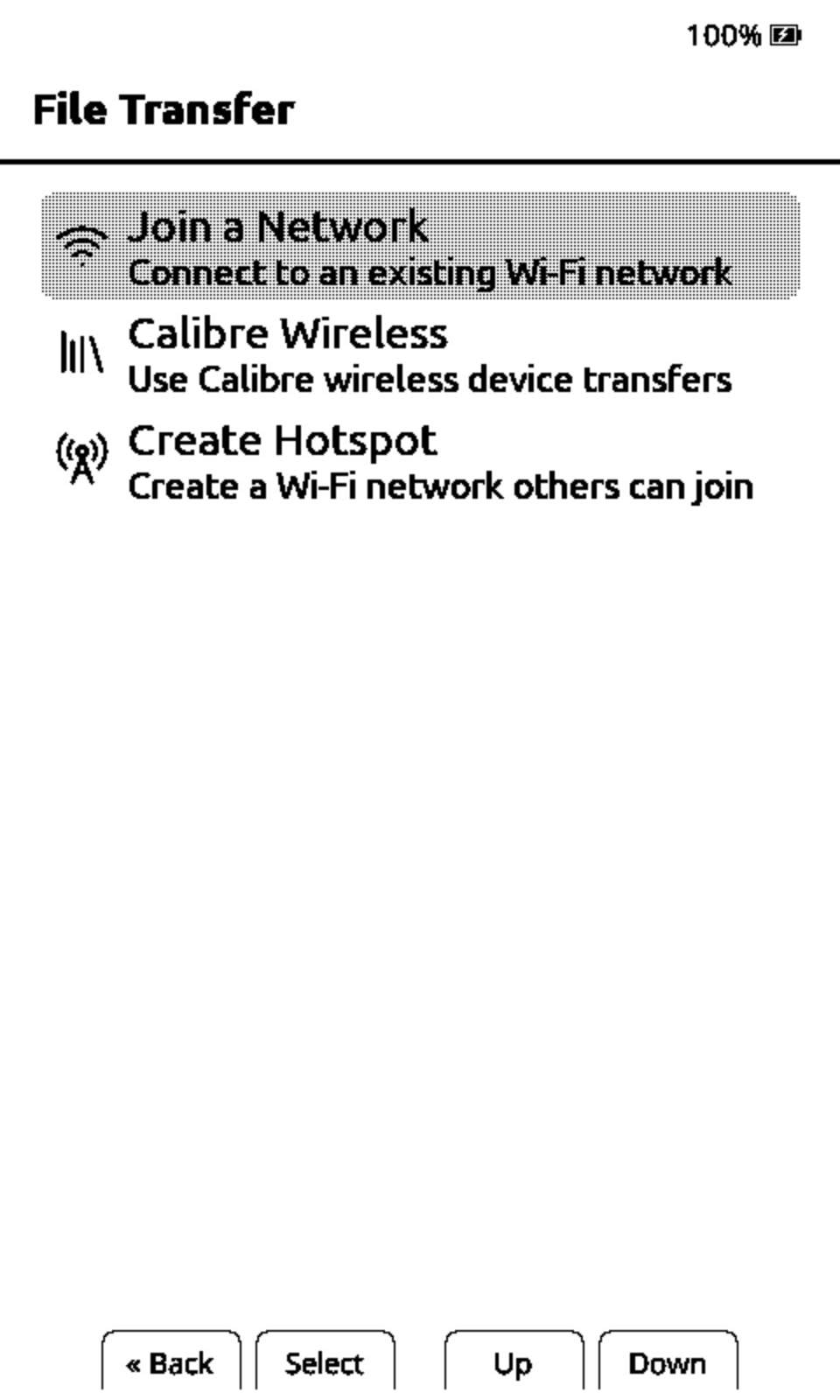
- Choose Join a Network and connect to your Wi-Fi.
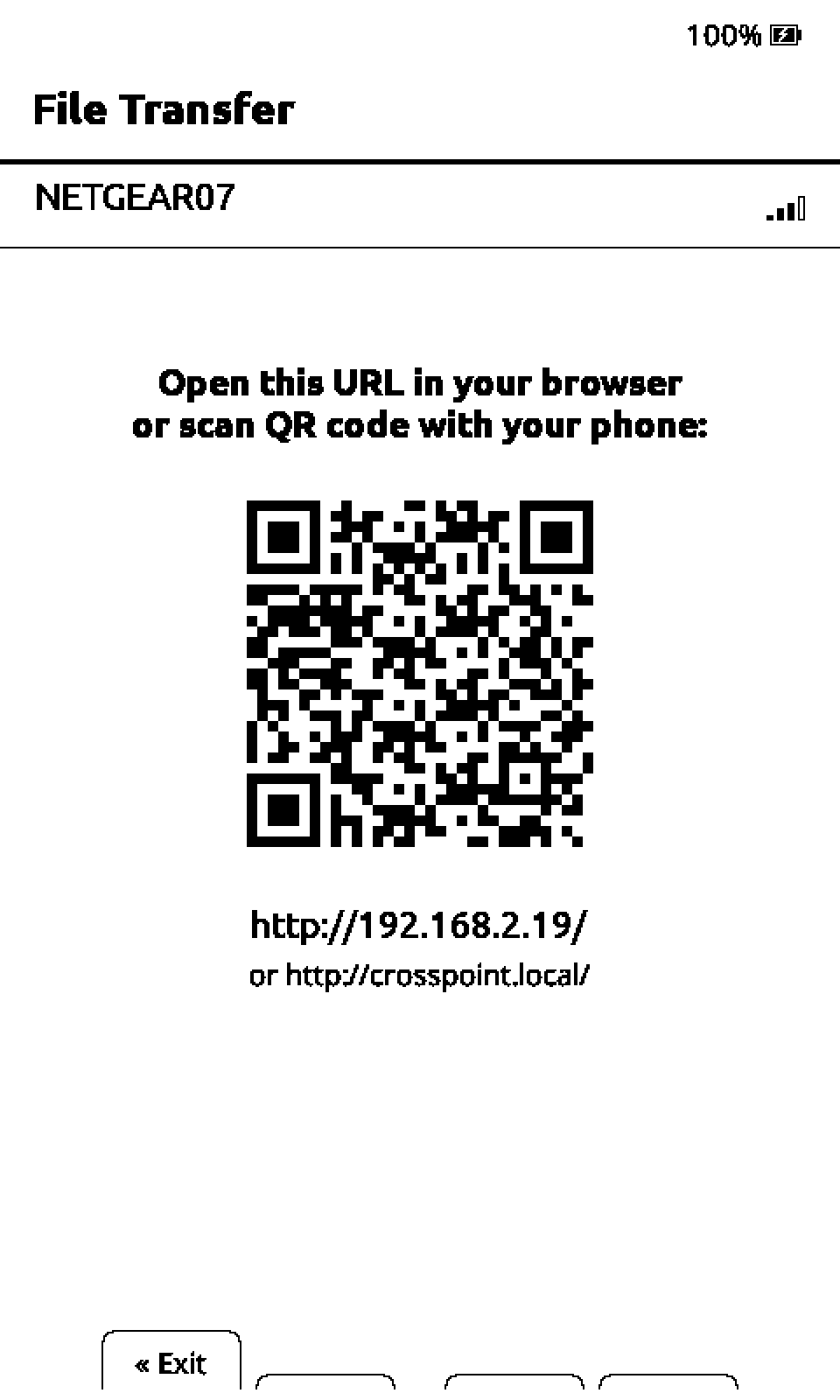
- Open the address the reader shows in a browser on your phone or computer, then go to Settings.
Sign in
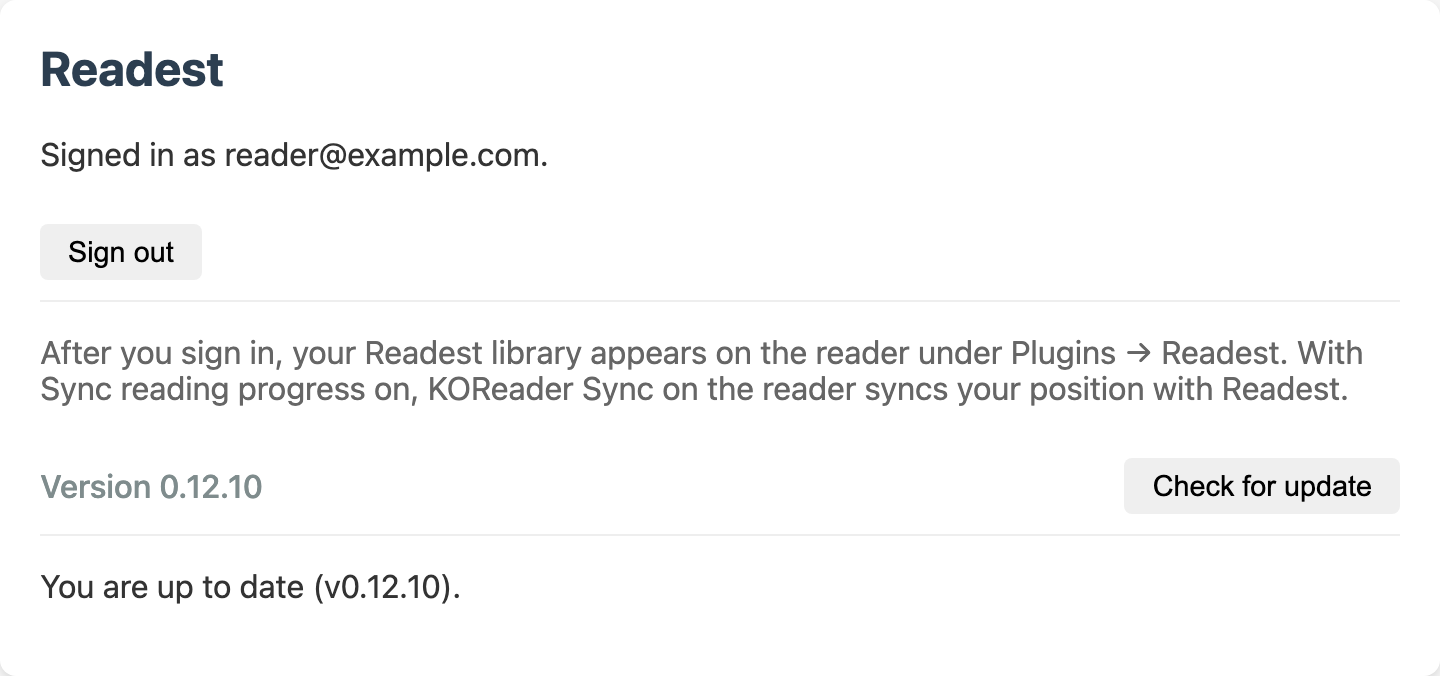
Find the Readest card on the Settings page.
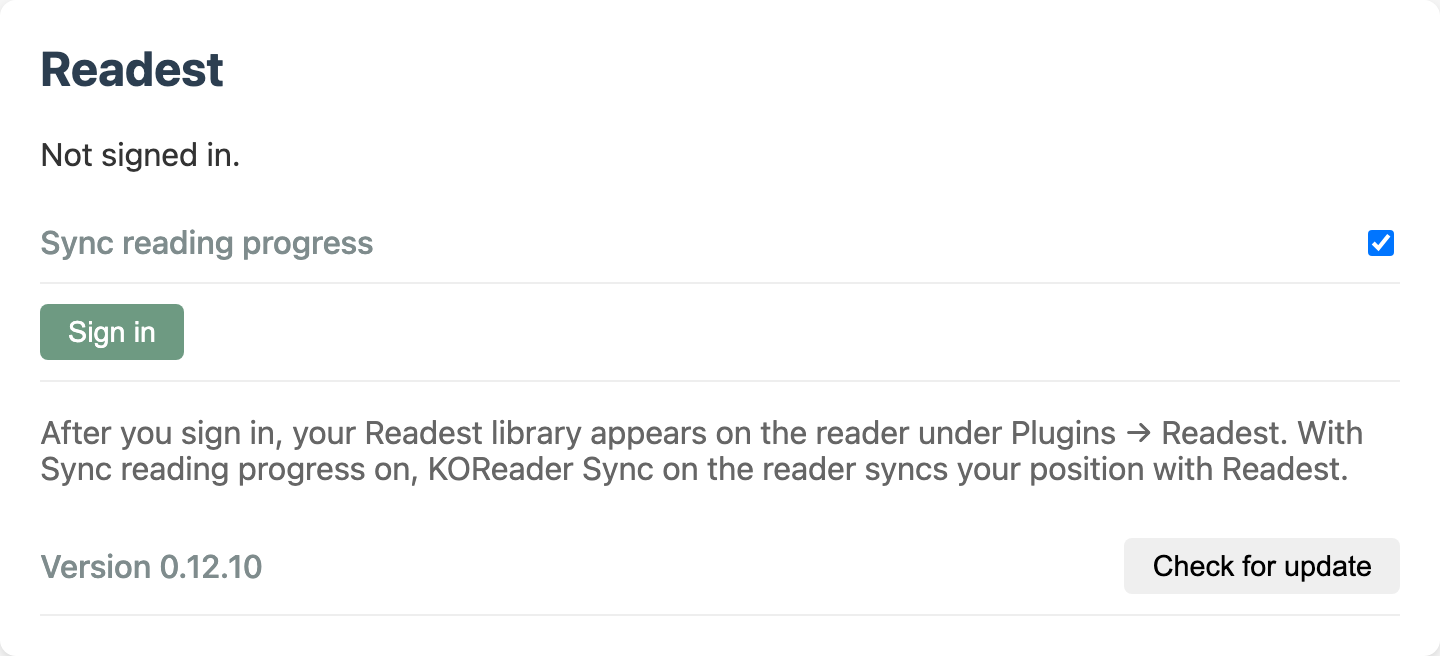
- Leave Sync reading progress on to sync your position with Readest. It starts on unless the reader's KOReader Sync already uses another server; turning it on replaces that server.
- Select Sign in. The card shows a link and a code.
- Open the link, check that the page shows the same code, and select Link Reader. Sign in to Readest first if the page asks you to.
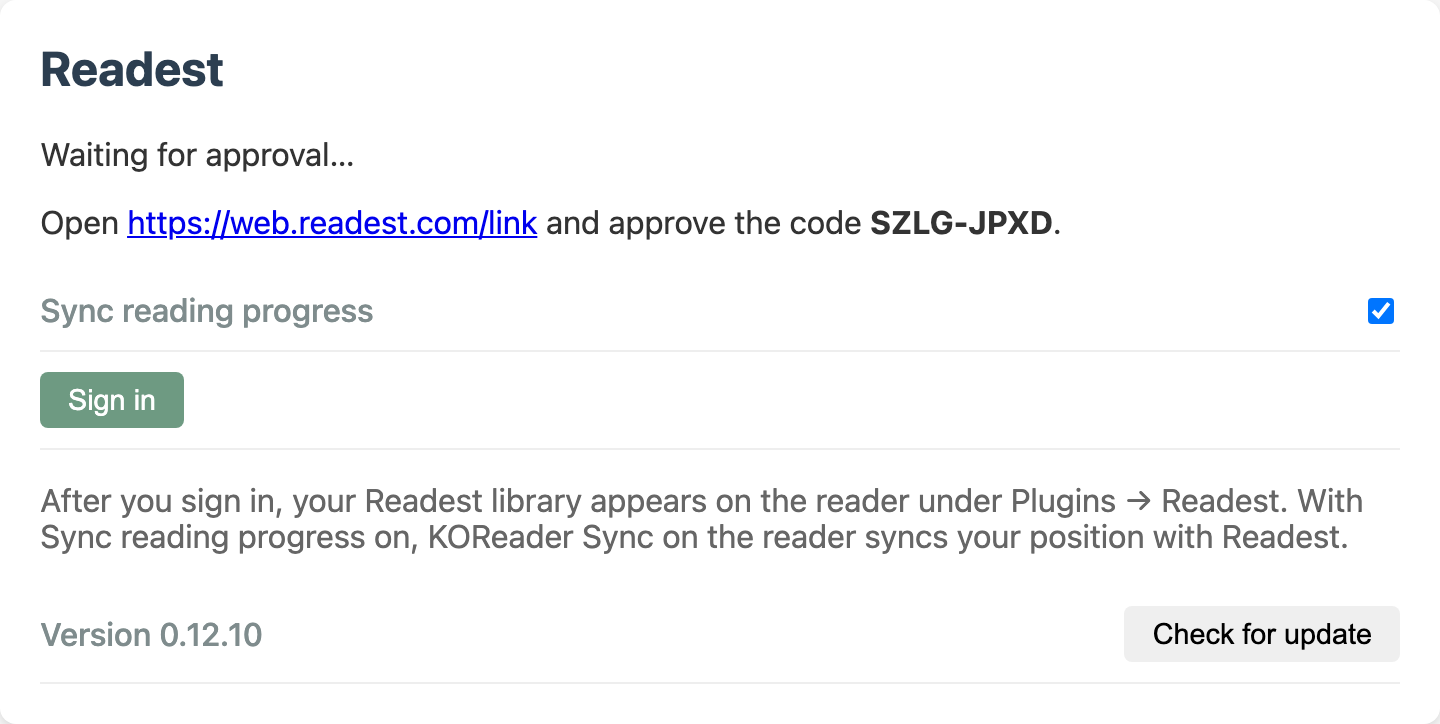
Within a few seconds the card says Signed in. The reader gets its own key, which works only for this plugin and is revoked when you sign out; your password is never stored on the reader.
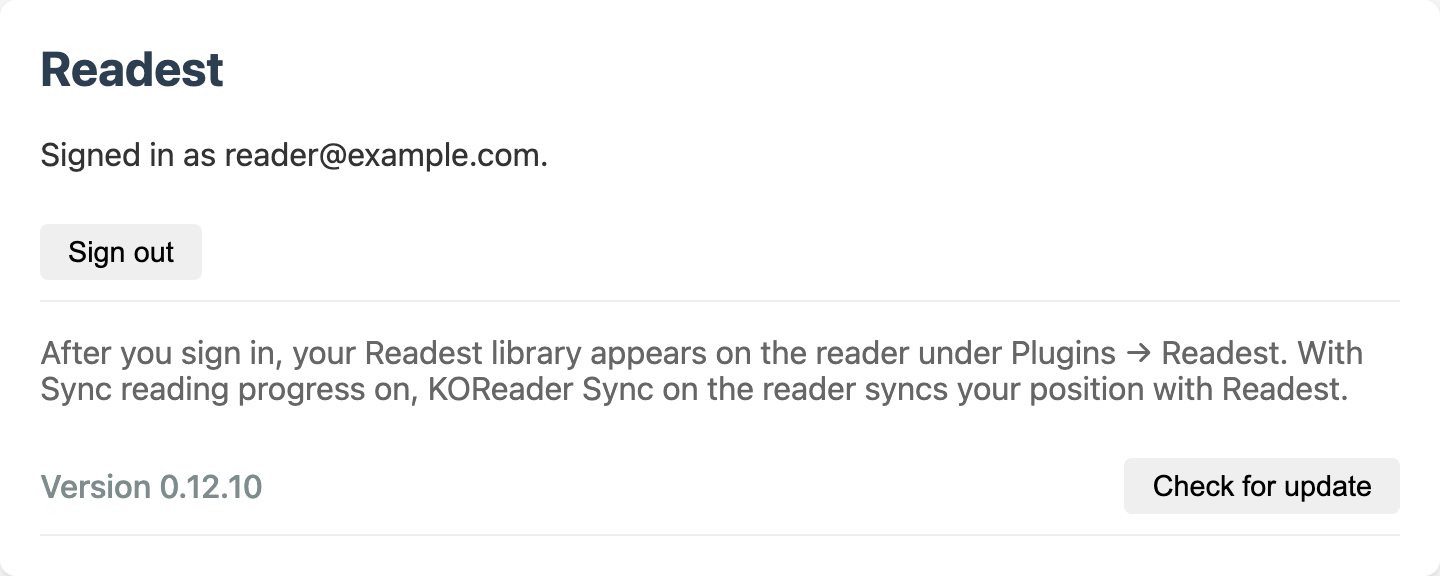
With Sync reading progress on, signing in also sets up the reader's KOReader Sync: Readest as the server, Document Matching set to Binary so books match Readest's own book ids, and Send metadata on.
Your library on the reader
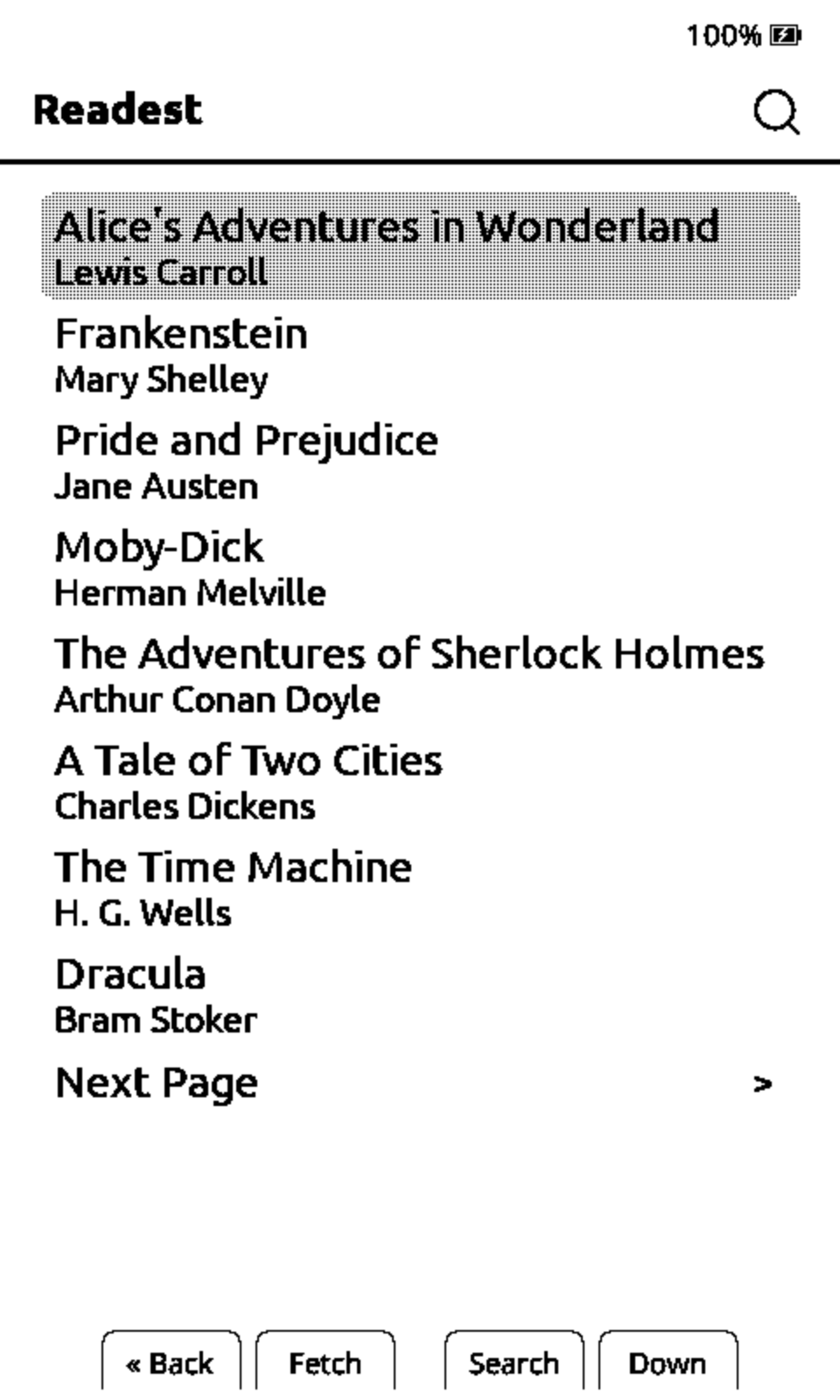
On the reader, open Plugins → Readest. Your Readest library is listed with the books you read most recently first. Use Search to find a book by title or author, and select one to download it to the /Readest folder on the SD card.
Reading progress
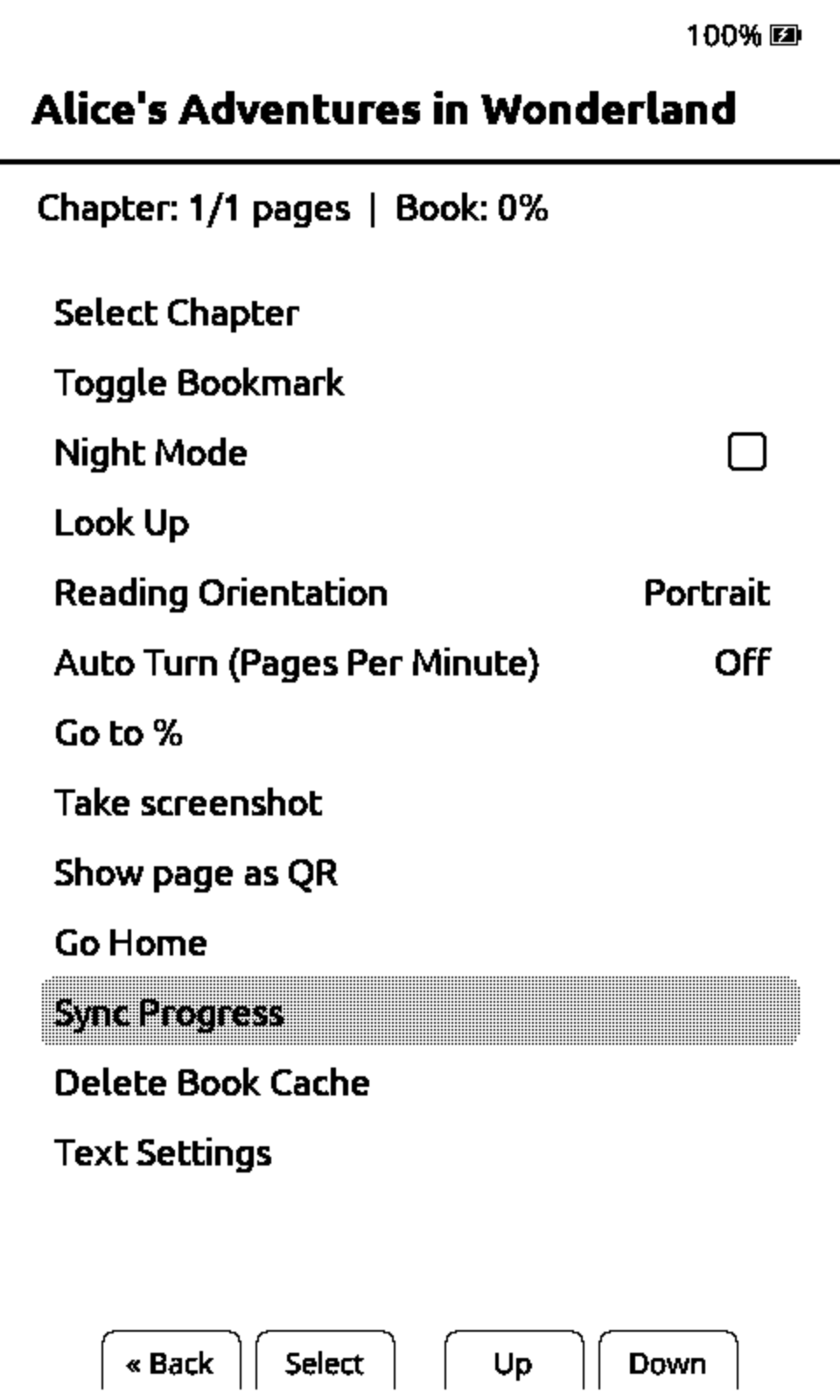
CrossPoint syncs progress when you ask it to, not automatically. In a book, open the reader menu and choose Sync Progress. The reader pulls your Readest position if it is further along, or sends its own position to Readest. Readest apps move to the synced position the next time they open the book.
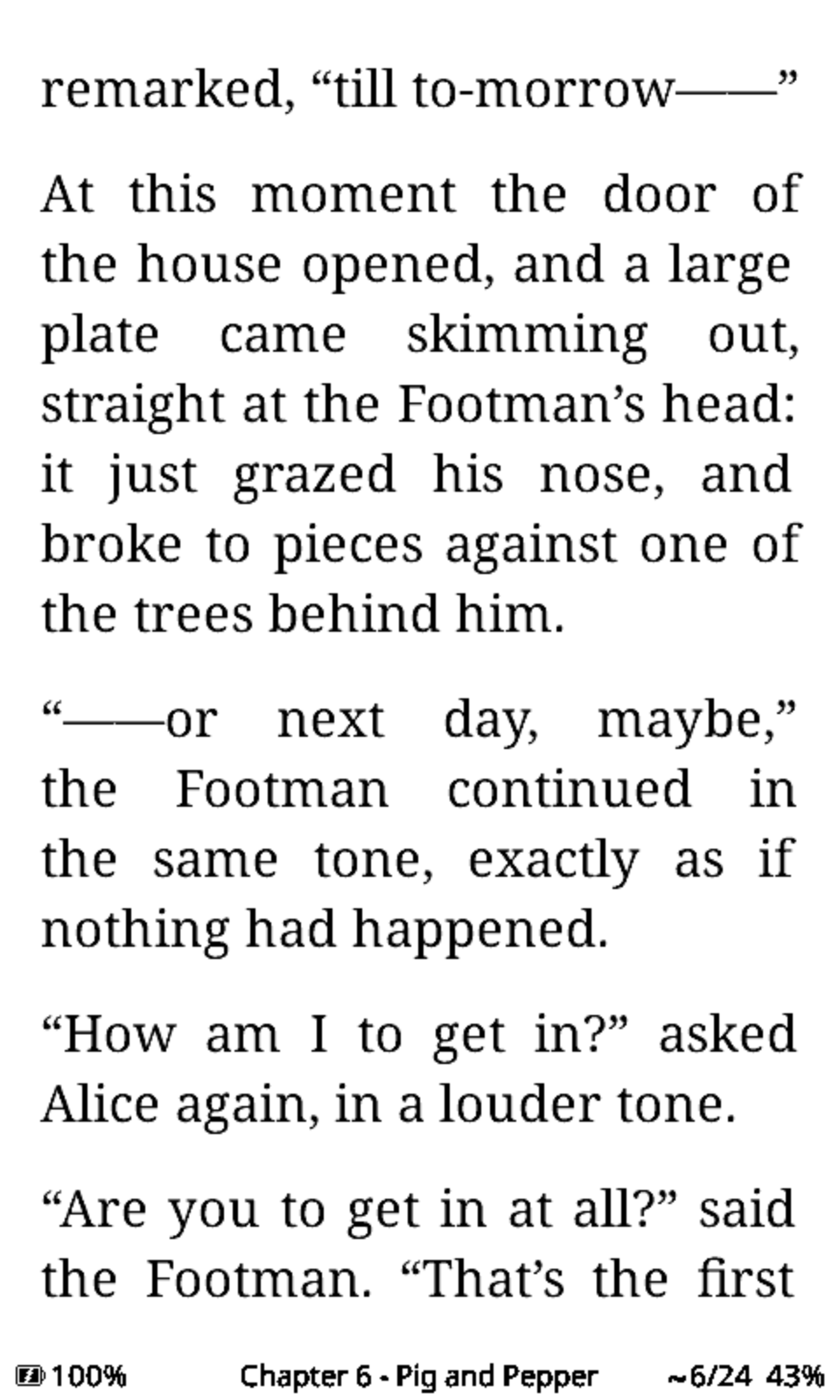
Books match by their file, so a book you downloaded through Plugins → Readest syncs from the start.
A book you uploaded through CrossPoint's File Manager with Optimize EPUB turned on is a rewritten copy, so it no longer matches by file. Its first Sync Progress links it to the Readest book with the same title and author, without moving your Readest position back. Sync it once more to bring your Readest position over; after that it syncs both ways like the original.
Reading statistics
Each reading session on the reader is queued and sent to Readest the next time the reader is online: when File Transfer joins a network, or on the way to sleep if Wi-Fi is saved for the last network. Each session's time is spread over the pages it covered, so it counts like reading in Readest. Books matching one in your Readest library merge with that book's statistics.
Update the plugin
The Readest card shows the installed version. Select Check for update; when a newer release is out, select Update, then reload the page. The reader's plugin list shows the new version too.
Sign out
Select Sign out on the Readest card. The reader's key is revoked, and KOReader Sync is cleared if it still points at Readest. Books already on the SD card stay there.